
1xBet fingerprint and face login: what your phone can and cannot do
Your phone can approve things with a fingerprint or a face, but that does not automatically mean the 1xBet betting account opens the same way. The short answer: biometrics on a phone are an operating system feature, while 1xBet documentation covers two-factor protection for the account rather than face or fingerprint sign-in. So you may unlock the handset without typing anything, then still type your password inside the app.
What biometrics actually control on a phone
Fingerprint and face recognition belong to the device, not to the betting platform. Apple calls this Face ID and Touch ID. Android makers use their own names, such as fingerprint unlock or face unlock. The sensor sits between you and the home screen, the banking app, or the camera roll, and each app decides separately whether it will trust that sensor.
That distinction matters because a phone-level unlock is not the same thing as an account-level login. Even where an app supports biometrics, the phone usually stores a cryptographic key locally and the app checks with the operating system before it opens. Nothing about that process reaches the sportsbook servers unless the app was built to ask for it.
Device security and account security are two separate systems that occasionally talk to each other. When they do not talk, the password remains the only door key.
Where the 1xBet app touches biometrics
The one documented biometric moment tied to 1xBet sits in the install flow, not in the betting session. On an iPhone, a mobile review describes confirming the App Store download with Face ID, Touch ID, or the Apple password. That is Apple asking you to approve a purchase or download, and it happens before the app has even opened.
Note what that means. The same prompt appears when you download any free app, so it is not evidence that 1xBet itself accepts a fingerprint at login. It is evidence that the iPhone uses biometrics to approve a store action. Nothing more should be read into it.
Documented versus phone-level features
| Feature | What supports it | Can you rely on it? |
|---|---|---|
| Face ID or Touch ID approving an App Store download | Mobile review of the install process | Yes, on a supported iPhone |
| Fingerprint or face login to the 1xBet betting account | No 1xBet document | Do not assume it exists |
| Two-factor protection for the account | Operator mobile page | Yes, as a listed setting |
| Unlocking the handset itself | Phone maker software | Yes, if you enabled it |
Android: what you can expect
Android installs usually arrive as an APK file pulled from the official site, so the store step that triggers Face ID on an iPhone simply does not exist here. Instead, the phone asks you to allow installation from an unknown source. Your fingerprint may confirm that permission on some devices, but that is the Android system at work.
Whether the installed app then offers a biometric unlock depends on code the operator would need to publish, and no store listing advertises it. Treat any fingerprint prompt you meet during setup as a system confirmation and not as account sign-in.
- Open the mobile site in your phone browser.
- Scroll to the footer and choose the mobile apps entry.
- Tap the Android option to start the file download.
- In phone settings, permit installs from unknown sources.
- Open the downloads folder, tap the file, and install.
- If a fingerprint prompt appears, it is confirming installation rights.
Android login steps that stay within documented ground
- Enter the username or phone number linked to the account.
- Type the password you chose at registration.
- Enable two-factor protection inside the app if you want a second layer.
- Keep registration data accurate, because that is what recovery relies on.
- Verify your phone number and email while the account is active.
iPhone: the store approves, the account does not
On an iPhone the install path runs through the App Store in supported regions. You locate the 1xBet listing, tap the get button, and approve with Face ID, Touch ID, or your Apple password. After that, the app opens like any other and asks for account credentials when you want to bet.
Apple explains how these sensors work in its own support material, which covers enrolment, per-app permissions, and fallback to a passcode. If you want the technical picture, read the reference on biometrics on iPhone before you change any settings.
One practical trap: a face or finger that unlocks the phone may not be the one that can approve a store download. Family sharing, Screen Time restrictions, and multiple enrolled faces all change the outcome, so test the approval step yourself before relying on it at speed.
iPhone approval order
- Enrol a face or fingerprint in phone settings first.
- Open the App Store listing for the app in your region.
- Tap get and wait for the approval prompt.
- Approve with the enrolled biometric or Apple password.
- Wait for installation, then open the app and sign in with your account data.
Why account login still leans on a password
The operator’s own mobile page lists two-factor protection as an account setting you can activate. It does not describe a fingerprint or face option for the betting account, and a listing that stays silent should be read as silence rather than permission. If a biometric login existed and was supported, it would normally appear beside the other security settings.
Two-factor protection usually pairs something you know with something you hold, such as a code sent to your phone. That covers a stolen password without needing a sensor at all, which is why the operator documents it and says nothing about faces.
Build a practical setup on your own phone
The sensible order is phone security first, account security second, and biometric login only if the app offers it. Before your next betting round through the 1xbet apk download, confirm that your password is stored somewhere you can retrieve it, because a failed face scan will not recover an account.
Setup checklist
- Turn on a screen lock with a fingerprint or face.
- Enrol only the biometrics you actually use.
- Install the app from the official source for your platform.
- Sign in and open the security settings.
- Activate two-factor protection.
- Check that your phone number and email are current.
- Note down the password separately from the phone.
- Test whether any biometric prompt appears inside the app.
- If it does not, keep using the password without worry.
| Your situation | Reasonable expectation | Action |
|---|---|---|
| iPhone with Face ID enrolled | Store download approval works | Enable two-factor inside the app |
| iPhone with Touch ID enrolled | Store download approval works | Keep the passcode as a fallback |
| Android with a fingerprint sensor | System prompts work, app login unconfirmed | Use the password and two-factor |
| Older phone without biometrics | Password only | Rely on two-factor protection |
Mistakes worth avoiding
People lose access in predictable ways. They enrol a face in poor lighting, then wonder why the store prompt fails. They reuse a password across sites and forget which one belongs to the account. They skip phone verification and later cannot recover anything.
- Assuming a phone unlock equals an account unlock.
- Skipping email or phone verification at registration.
- Leaving two-factor protection switched off.
- Sharing the handset with someone whose face is also enrolled.
- Changing Apple ID region and expecting the same store behaviour.
If a biometric prompt fails mid-task
- Use the passcode or password fallback offered on screen.
- Retry with a clean, dry finger or better lighting.
- Check that the app is not restricted by Screen Time.
- Remove and re-enrol the biometric if failures continue.
- Sign in to the account with the password as normal.
When to ask support instead of guessing
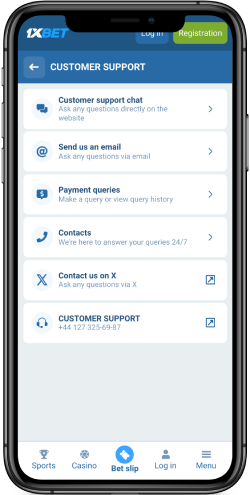
Support is the right channel when a setting you expect is missing, when verification stalls, or when a prompt behaves inconsistently across two devices. Have your registration data ready, since the operator documents true registration data as part of account security.
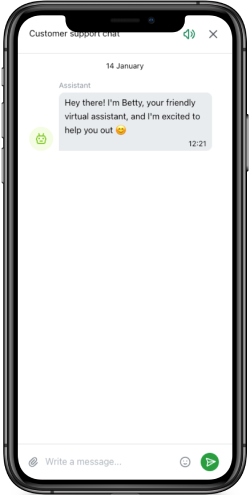
Contact options include in-app chat and the listed phone line. Describe the exact screen where the behaviour differs, and say whether the prompt came from the phone system or from inside the app. That single detail decides which team can help.
FAQ
Can I open 1xBet with my face if my iPhone unlocks that way?
Only the App Store approval step is documented. The betting account still takes a password, so keep your credentials safe even when Face ID handles the download.
My Android phone asks for a fingerprint during installation. Is that account login?
No. That prompt confirms your permission to install an outside file. It sits in the phone settings layer and says nothing about how the account opens later.
What happens if I enrol a second face on the same phone?
Both faces can usually approve store actions, which is a shared-device risk. If someone else uses your handset, remove the extra enrolment or rely on the passcode instead.
Does two-factor protection replace a biometric login?
They solve different problems. Two-factor protection guards the account with a second proof of identity, while biometrics guard the device. Having the first does not give you the second.
Can I recover an account if I lose the phone with my biometrics on it?
Recovery runs through the registration data, verified phone, and verified email rather than through your face. Keep those details current so support can identify you without the handset.